Record two devices together.
Use one iPhone or iPad for the screen and another for your camera and voice over local wireless. Either device can take either role.
 ScreenDuo
Screen + camera recording for Apple devices
Use one iPhone or iPad to show the screen and another to film yourself. On Mac, record a display or app window with your camera or a webcam. Edit the screen and camera separately afterward.
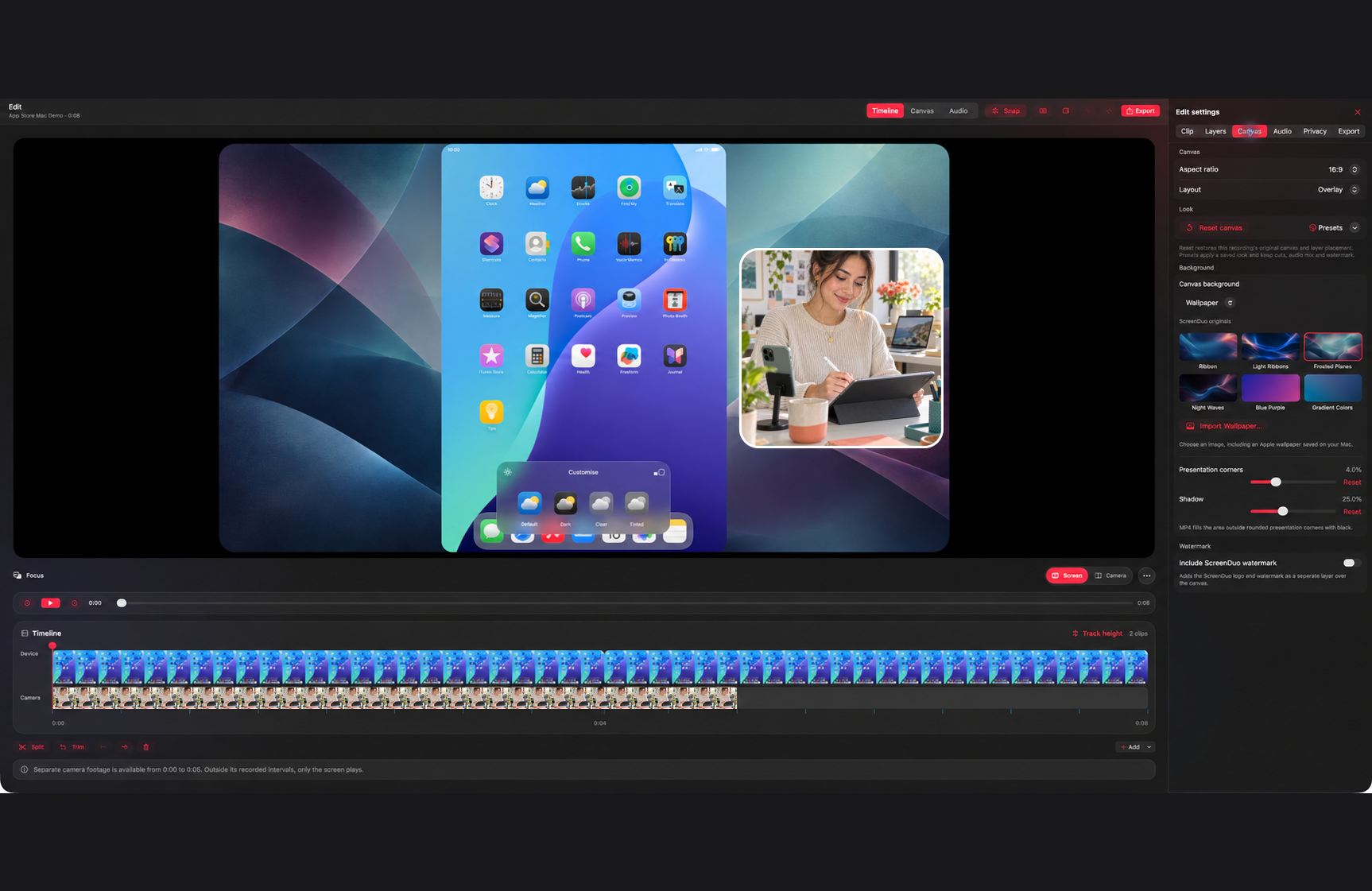
Show what is happening on screen while you talk your viewer through it.
How ScreenDuo works
Put the screen on the device you want to demonstrate and the camera where you look best. In a paired recording, ScreenDuo saves both sources separately so you can change the camera position after the take.

What you can make with ScreenDuo
Record your screen and yourself, stay on script, protect private details, and give the finished video a look that fits.
Use one iPhone or iPad for the screen and another for your camera and voice over local wireless. Either device can take either role.
Capture a display or app window with the Mac's built-in camera, a connected webcam, or your iPhone through Continuity Camera.
Read your talking points beside the live preview. The teleprompter can follow your voice and stays out of the recording by default.
Scan for sensitive text or mark an area yourself. Blur, pixelate, or cover it, then review the video before you share it.
On Mac, play an existing clip while you record your camera and voice over it. Keep the original footage available for editing.
Place your screen and camera on a canvas with a solid color, gradient, or wallpaper. Change the layout to suit the story.
Edit without starting over
Trim a pause, move your camera, or change the frame after you record. Your original screen and camera footage stays intact.
Trim and split the screen, camera, and audio together so every cut stays in sync.
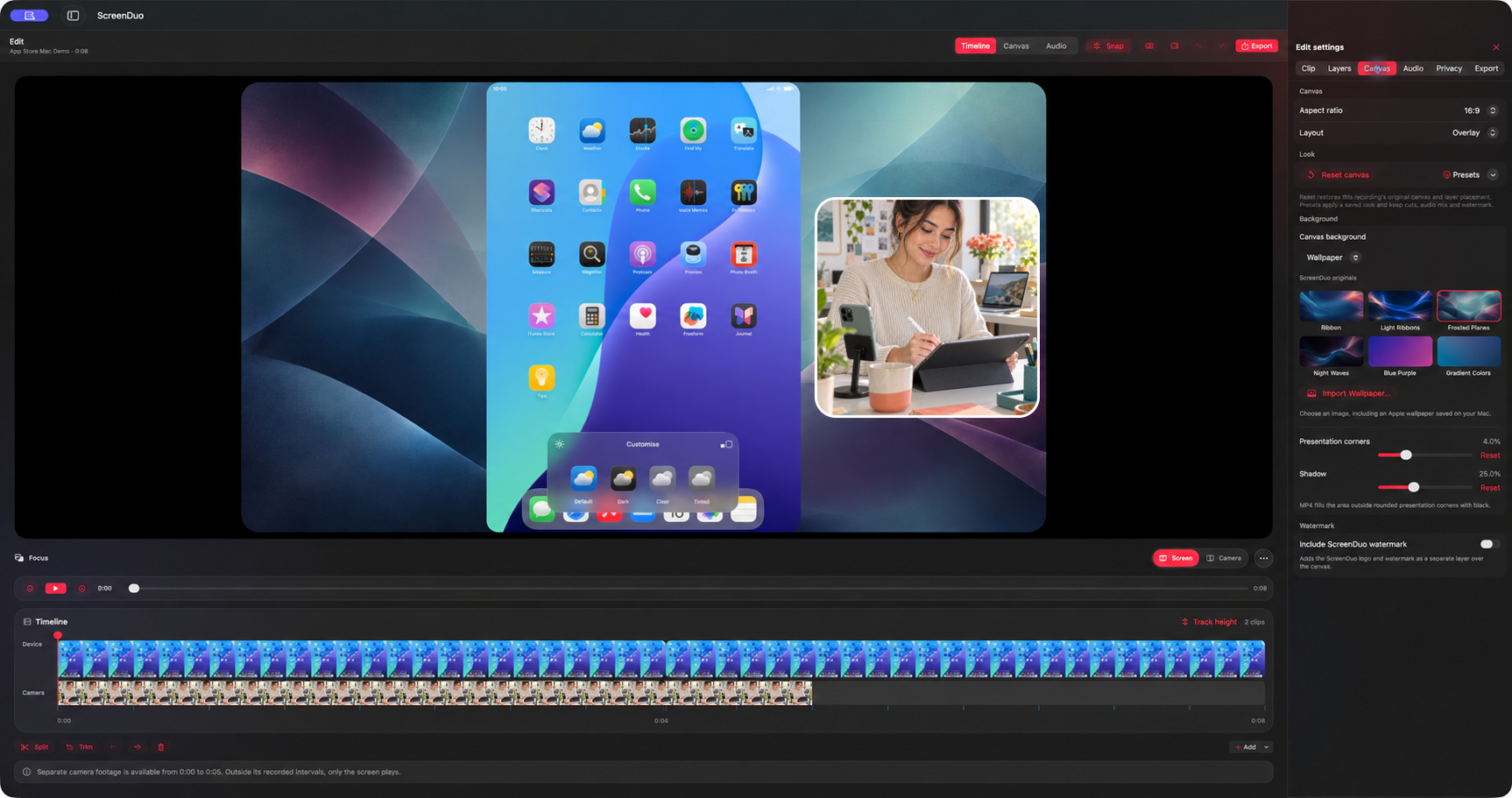
Choose a ratio and layout, then position each source in the frame.
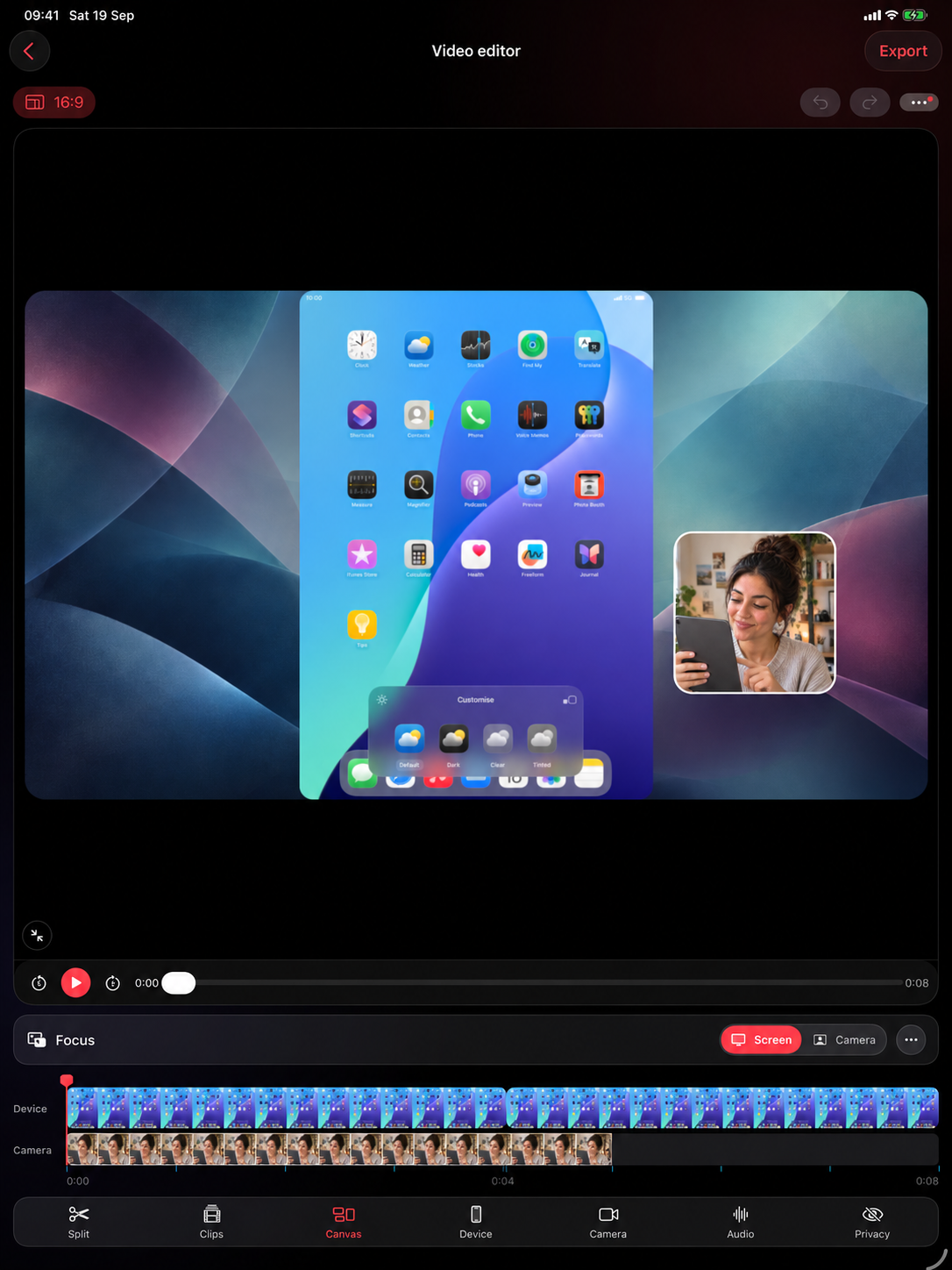
Send a finished cut for a lesson, demo, or support reply.
Your screen, camera, voice, layout, and clip decisions stay together. Open the project on another device when the work moves.
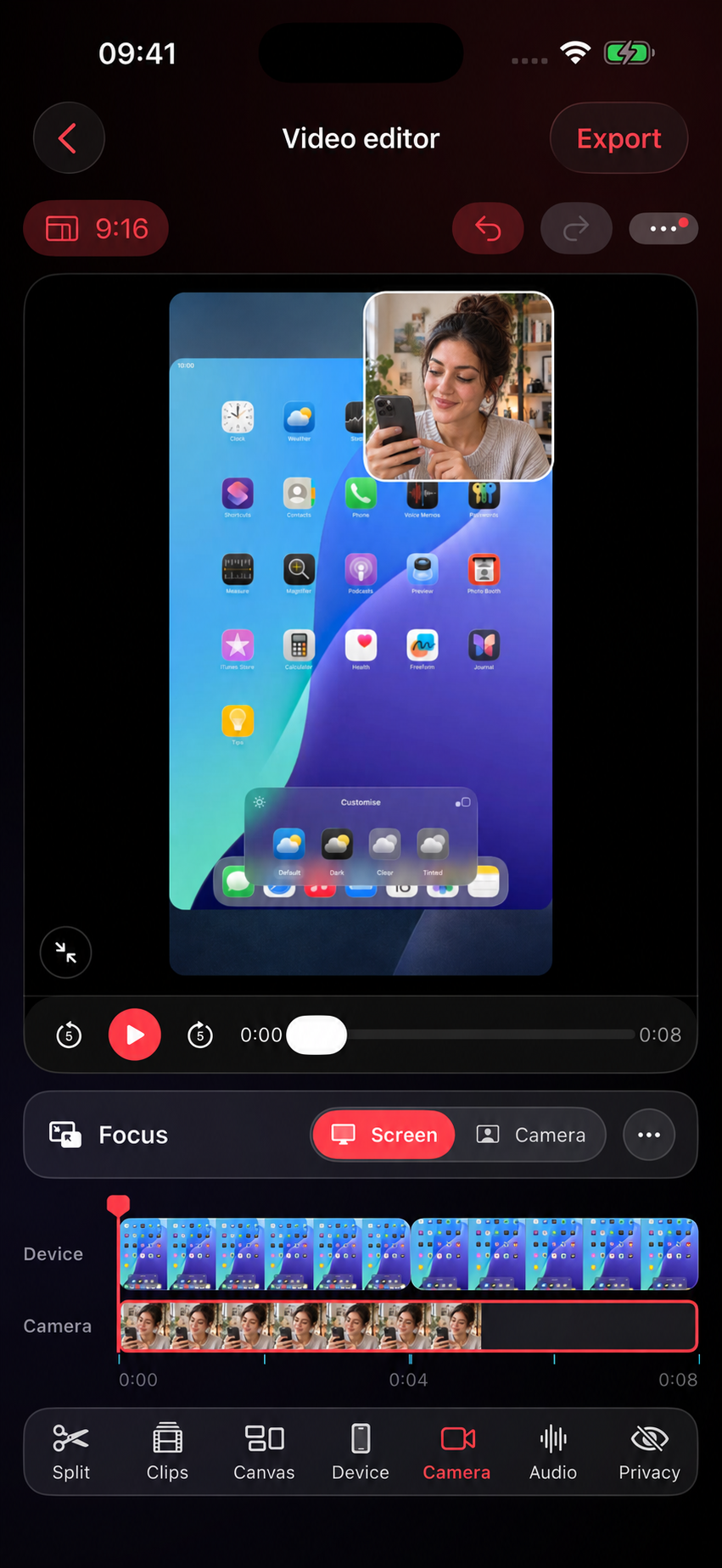
Screen + camera, in sync
Let one iPhone or iPad share its screen while the other films you and records your voice. Swap their roles when the other screen is the one you need to show.
See the pairing details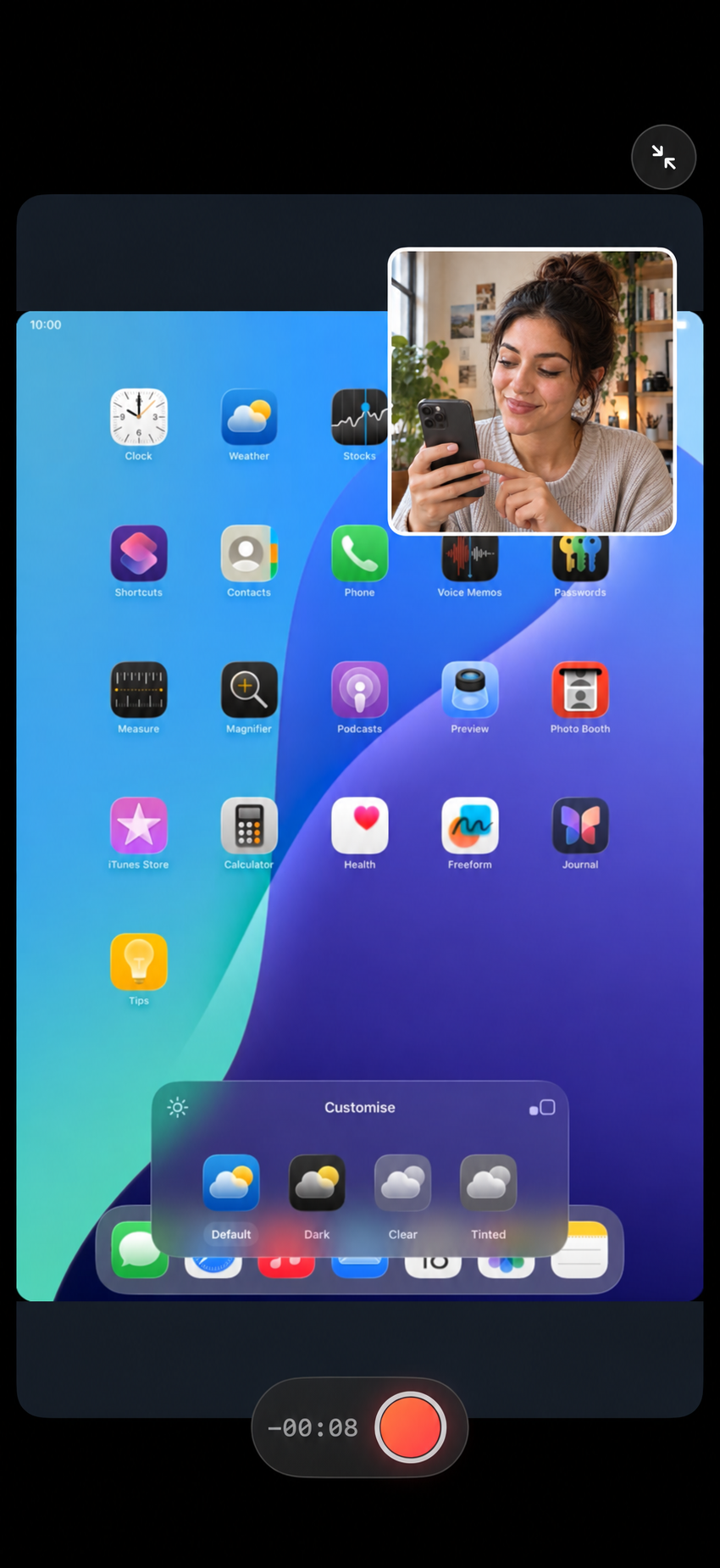
Use ScreenDuo for
Help people follow what you do on screen while they hear and see the person guiding them.
Why ScreenDuo
Reframe the presenter without recording the app again.
Recordings stay on your devices unless you choose to move them.
Send an editable .screenduo project through AirDrop or Files.
The finished MP4 carries your work, not a recorder logo.
Recording guides
Step-by-step help for recording a screen and camera on iPhone, iPad, and Mac.
Keep the screen, camera, and voice separate for tutorials, app demos, and support videos.
Capture a Mac display or app window, or bring in an iPhone or iPad screen, then shape the take in the Mac editor.
iPhone, iPad, Mac, facecam, voiceover, app demos, and watermark-free exports.
Before you pair
Choose the screen you want to show, then choose a camera and microphone. For an iPhone or iPad screen, a second iPhone or iPad can film you while the first shares its screen. On Mac, use a built-in camera, webcam, or iPhone Continuity Camera. You can move or resize the camera in Edit afterward.
Yes, in supported configurations. ScreenDuo uses Apple’s system broadcast flow, so you still approve the capture in the system picker.
Yes. With two iPhones, two iPads, or an iPhone and an iPad, choose which device shares its screen and which stays in ScreenDuo to record your camera and voice. These iOS pairings use local wireless.
Yes. Choose a whole Mac display or one app window as the screen source, then record it with your camera and voice.
Yes. Choose the Mac's built-in camera, a connected webcam, or an iPhone available through Continuity Camera as your camera source.
No, the live teleprompter stays out of the recording by default. You can choose to include it when you export from Edit.
Yes. Scan for sensitive text or mark an area by hand, then choose blur, pixelation, or a solid cover. Check the result before sharing because a scan can miss details.
With paired recording, ScreenDuo stores the screen and camera as independent sources when the camera pass is available.
No. ScreenDuo Pro is a one-time purchase shared across Mac, iPhone, and iPad. Current pricing is shown in the App Store.
Recordings and editable projects stay on your devices by default. Export an MP4 or send the editable project to another device when you need it.
Available now on iPhone
Start with a short screen and camera recording. Edit the layers, protect private details, and share the finished video.
Download on the App Store